
Add Do Today to your home screen
Do Today is a website that can sit on your phone like an app — one icon, no App Store download. Steps differ by phone and browser; use the section that matches yours.
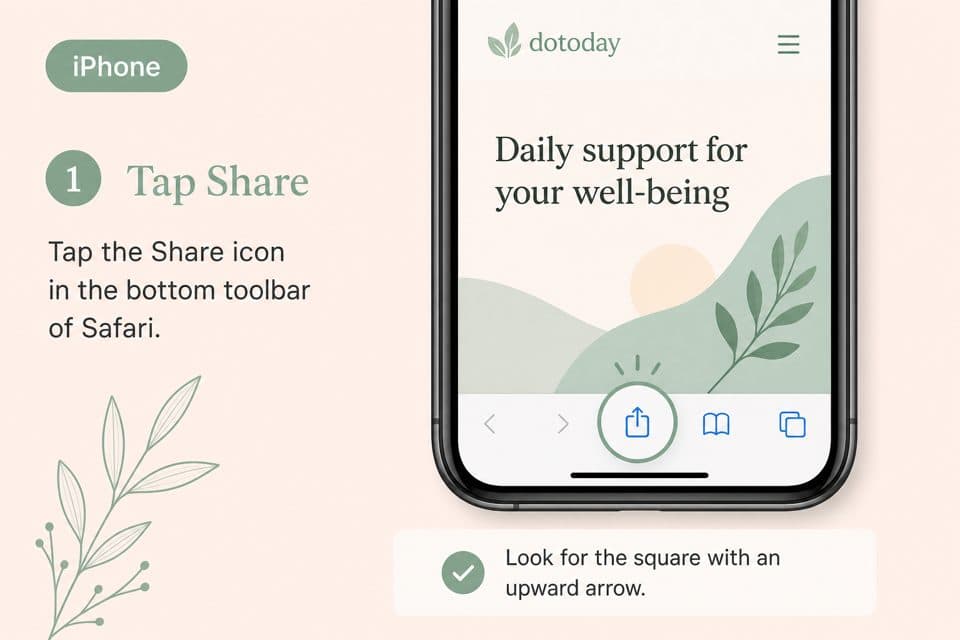
iPhone — Share in Safari
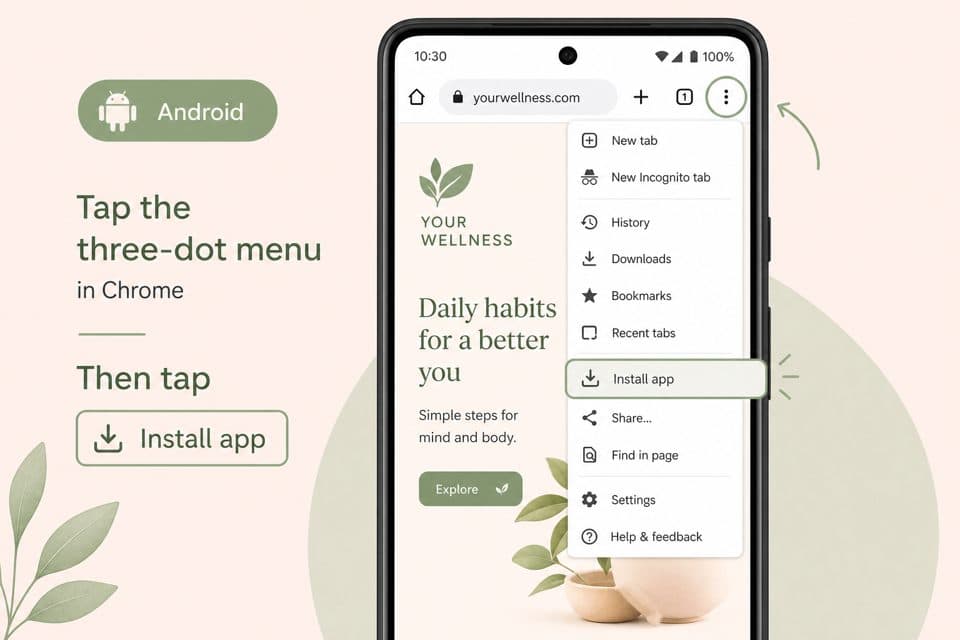
Android — Install app
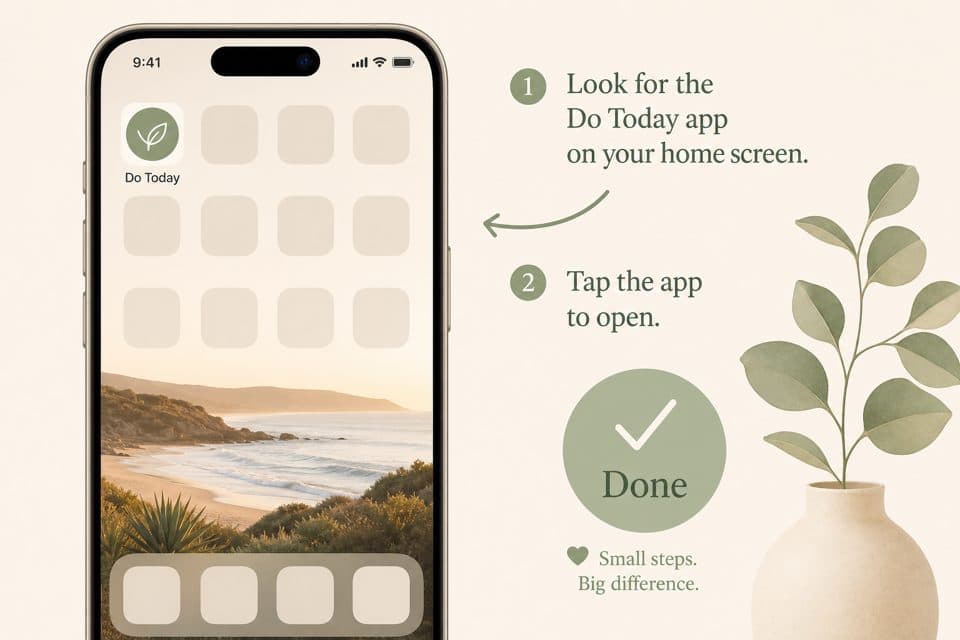
Opens like an app
iPhone or iPad — use Safari
On Apple phones and tablets, home-screen web apps are set up from Safari (Apple's browser). If you usually open Do Today in Chrome or another browser on iPhone, open the same address in Safari for this step.
- 1Open Safari and go to dotoday.com.au. Sign in if you need to.
- 2Tap Share — the square with an arrow pointing up. (On some Safari layouts it sits in the address bar or under the ••• menu, then Share.)
- 3Scroll the list and tap Add to Home Screen. If you don't see it, scroll to the bottom, tap Edit Actions, turn on Add to Home Screen, then try again.
- 4If you see Open as Web App, leave it on so it opens without the Safari address bar. Tap Add.
The icon only appears on that device — add it again on a second phone or iPad if you use both.
Android — Chrome (recommended)
Chrome is the most reliable path. Wording varies slightly by phone maker.
- 1Open Chrome and go to dotoday.com.au.
- 2If an Install or Add Do Today to Home screen banner appears, tap it and confirm.
- 3No banner? Tap the ⋮ menu (top right) → Install app or Add to Home screen → confirm.
Samsung Internet: menu → Add page to → Home screen.
Firefox (Android): menu → Install (when offered).
Computer — Chrome or Edge
- 1Open dotoday.com.au in Chrome or Microsoft Edge.
- 2Look for an install icon in the address bar (monitor with a down arrow), or open the browser menu → Install Do Today… / Apps → Install this site as an app.
- 3Confirm — it opens in its own window like a desktop app.
Safari on Mac doesn't install PWAs the same way; on Mac, Chrome or Edge is the practical option, or keep using the website in Safari.
What you get — and what you don't
- • One-tap open — no typing the address each time.
- • Opens like an app — full screen, without the browser chrome taking space (when installed as a web app).
- • Same account — not a second login or a separate App Store app. Your diary and plan stay the same.
- • Still needs the internet to chat with Abraham and save new entries. This is not an offline-only app.
- • Reminders on the lock screen still need Telegram or push turned on — the home-screen icon alone doesn't buzz you. On a Mac, Focus can hide Telegram banners in Notification Centre; see that guide.